Part 2: From Concept to Command Line: Running Your First Local LLM (No Cloud Required)
SUPER FRIENDLY STEP-BY-STEP GUIDE THAT SMOKES ANY ONLINE COURSE

In Part 1, I shared why I’m building a local LLM from scratch — no APIs, no cloud servers, and no computer science degree required. This post picks up from there.
If you're following the BYOLLM curriculum, this is where things get real: you’ll install tools, run your first model, and start turning your ideas into a private AI assistant that works locally and learns from your data.
Quick housekeeping before you read further: JOIN THE DISCORD SERVER so you can commune with other builders and troubleshoot when you get stuck. I’m there to answer questions, always.
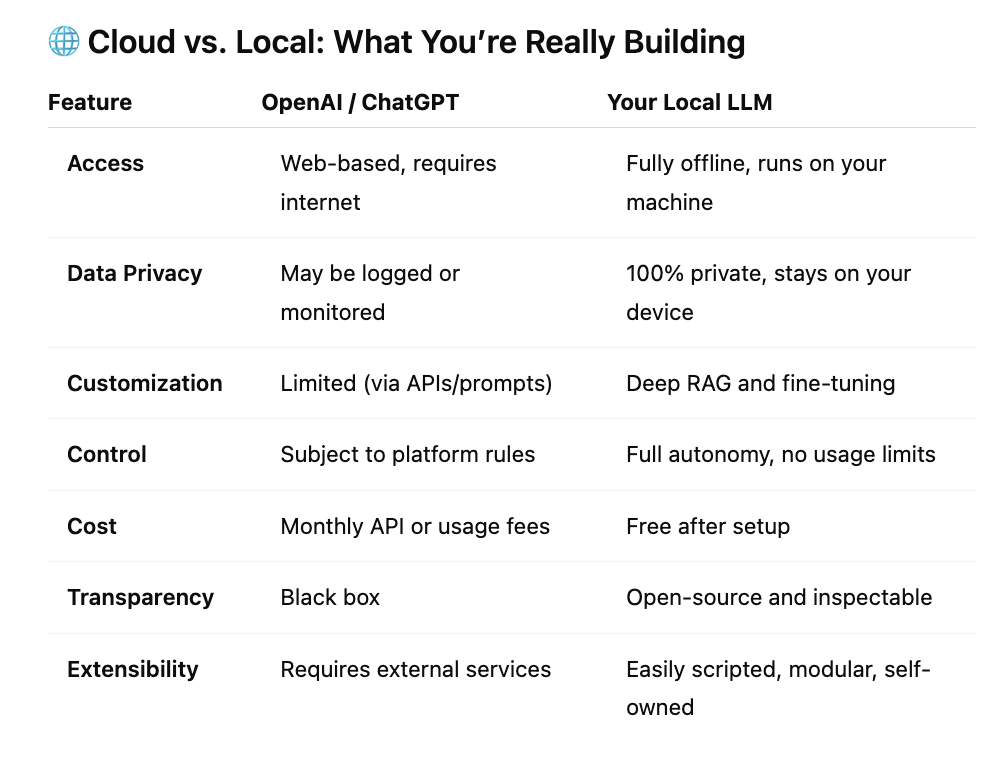
🧠 What You’re Really Building
You’re building a fully offline, closed-system memory LLM using open-source tools on your personal machine. This local model will support both retrieval-augmented generation (RAG) and optional fine-tuning, enabling you to:
Interact with your own private chatbot
Feed it documents, notes, and PDFs
Adapt its responses to your style or subject area
Never send a single byte of data to the cloud
🛠️ PHASE 1: FOUNDATION — Run a Local LLM Offline
This is your foundation: by the end of these steps, your model will be fully installed, working offline, and ready to be customized.
✅ Step 1: Download Model Weights
What it is: The “brain” of the model — the weights are a file of billions of learned parameters.
Tool: Ollama (handles download + runtime)
Command (for both Mac and PC):
ollama run mistralThis command does three things:
Downloads the Mistral model weights (~4–13GB)
Installs the tokenizer
Launches an interactive prompt:
>>>
Mac Tip: Open Terminal by pressing Command + Space and typing Terminal, then hit Enter.
Windows Tip: Use Command Prompt or Windows Terminal. After installing Ollama, type the same command there.
If "ollama" is not recognized, you may need to restart your terminal or add it to your system PATH. Refer to Ollama's install guide for your OS.
See below of a video of me in my Mac terminal, this is what it should look like if you’ve completed this step successfully.
✅ Step 2: Get the Tokenizer
What it is: Tokenizers split your input text into chunks (tokens) the model can understand.
Local version: Tokenizer is automatically included with model download in Ollama and LM Studio. Nothing extra to install.
✅ Step 3: Set Up the Runtime (Inference Engine)
What it is: The program that translates input into responses.
Option A: Ollama CLI (Command Line Interface)
Already running if you typed:
ollama run mistralType a prompt like:
>>> What are the principles of permaculture?Option B: LM Studio GUI (Graphical User Interface)
Download from
https://lmstudio.ai
Open app, choose Mistral or another model
Interact via a clean chat window
✅ Step 4: Add a Local UI (Optional)
If you prefer not to work in Terminal, you can layer on a local visual interface.
LM Studio — easiest option for most users
Open WebUI — browser-based frontend (requires Node.js)
AnythingLLM — useful for building multi-user assistants
All options work on both Mac and PC. For LM Studio, just download and open the app. It auto-detects models.
📂 PHASE 2: PERSONALIZE YOUR MODEL WITH YOUR OWN DATA (RAG)
Make your model actually useful by feeding it your own documents.
✅ Step 5: Collect & Organize Data
Create a folder of your documents:
C:\Users\YourName\Documents\memory_data\or on Mac:
/Users/YourName/Documents/memory_data/Supported: PDFs, .docx, .md, .txt, transcripts, OCR'd images, etc.
✅ Step 6: Install the RAG Stack
Use Anaconda (PC) or Miniconda (Mac) to manage Python environments.
Create and activate your environment:
conda create -n rag-assistant python=3.10 -y
conda activate rag-assistant
Install required packages:
pip install llama-index sentence-transformers chromadb✅ Step 7: Index and Embed Your Files
Use this script:
from llama_index import VectorStoreIndex, SimpleDirectoryReader
from llama_index.embeddings import HuggingFaceEmbedding
from llama_index.vector_stores import ChromaVectorStore
import chromadb

documents = SimpleDirectoryReader("memory_data").load_data()
embed_model = HuggingFaceEmbedding(model_name="all-MiniLM-L6-v2")

chroma_client = chromadb.Client()
vector_store = ChromaVectorStore(chroma_collection=chroma_client.get_or_create_collection("memories"))
index = VectorStoreIndex.from_documents(documents, embed_model=embed_model, vector_store=vector_store)
✅ Step 8: Ask Questions Using Your Data
query_engine = index.as_query_engine()
response = query_engine.query("What are the key ideas around regenerative design?")
print(response)
Now your model responds with context from your files.
🧬 PHASE 3: FINE-TUNING (Optional)
Want to teach your model to sound like you? Use small training files to tune tone, phrasing, and focus.
✅ Step 9: Prepare Your Dataset
{
  "prompt": "How do you irrigate in a dry climate?",
  "response": "Use greywater and mulch to retain moisture and feed plant roots."
}
Save as training_data.json
✅ Step 10: Install Fine-Tuning Tools
pip install transformers datasets peft bitsandbytes accelerateCheck GPU status:
import torch
torch.cuda.is_available()
✅ Step 11: Fine-Tune with QLoRA
python train.py \
  --model_name_or_path mistral \
  --train_file ./training_data.json \
  --output_dir ./finetuned_model \
  --use_peft True
✅ Step 12: Run Fine-Tuned Model in Ollama
ollama create memory-model -f Modelfile
ollama run memory-model
Now your assistant has both knowledge and personality.
In the next post, we’ll hook your model up to spreadsheets, teach it new workflows, and optionally deploy it as a local web app. Stay tuned!
Looking forward to the follow-on posts!